


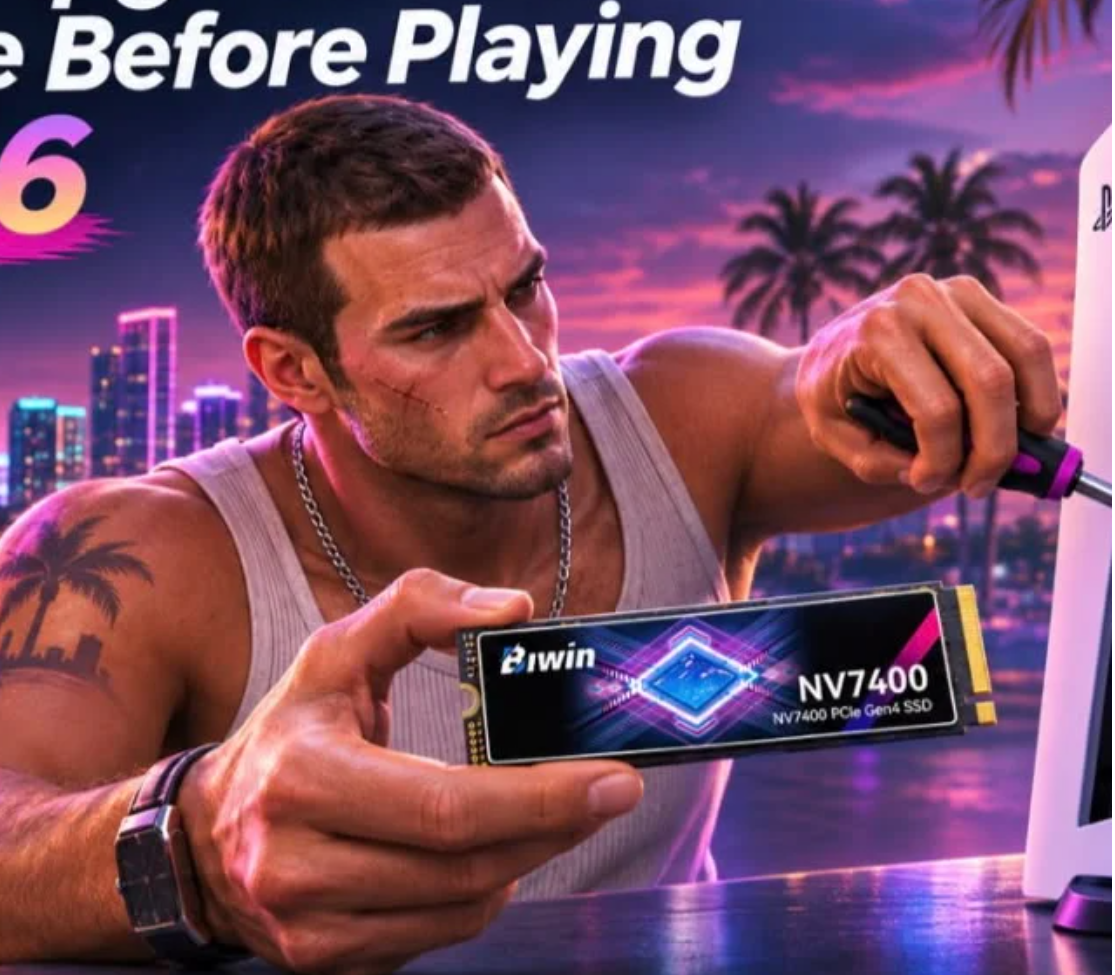
GTA 6 needs at least 212GB of free space for pre-download on PS5, and plenty of players may run out of room before launch. If your console is already packed with games, apps, and saved data, now’s a good time to think about a PS5 storage upgrade.
The good news: you don’t need another console. You can delete games, use an external USB drive, or install an internal M.2 SSD.
This guide covers the PS5 storage expansion options, how to choose a compatible SSD, and how to install one step by step.
How Much Storage Space Does GTA 6 Need on PS5?
GTA 6 Requires at Least 212GB of Available Space
According to the PlayStation Blog, PS5 players need to free at least 212GB for the GTA 6 pre-download. Pre-downloads began on November 10, 2026, ahead of the November 19 launch.
That 212GB is the minimum free space required for pre-download—not necessarily the game’s final installed size.
Why You May Need More Storage Than Just 212GB
GTA 6 probably isn’t the only game you’ll want installed. If your PS5 already holds several large titles, making room for one new release could mean deleting games you still play.
Extra storage lets you keep GTA 6 alongside the rest of your library without constantly uninstalling and re-downloading games.
What Are Your Options for Expanding PS5 Storage?
You have three main options.
Delete or Move Games You No Longer Play
The simplest option is to delete games you’ve finished or stopped playing.
Go to Settings > Storage > Console Storage > Games & Apps to see what’s installed, then select individual games and delete them. It costs nothing, but it gets tedious if you switch between games often.
Use an External USB Drive
An external USB drive is another option.
You can store PS5 games on compatible USB extended storage, but you can’t play them directly from it—they have to be moved back to console storage or an internal M.2 SSD first. PS4 games are the exception and can run straight from compatible USB storage.
That makes an external drive handy for archiving, less so if you switch between several PS5 games.
Install an Internal M.2 SSD
If you want more space without the hassle, an internal M.2 SSD is the practical choice.
A compatible drive lets you download, store, and play PS5 games directly, and you can move games between the console’s built-in storage and the new drive. Unlike external USB storage, there’s no transferring back before you play.
How to Choose a Compatible M.2 SSD for PS5
Not every M.2 SSD works with the PS5. Before you buy, check Sony’s requirements.
| Specification | PS5 requirement |
| Interface | PCIe Gen4 x4 NVMe |
| Capacity | 250GB–8TB |
| Recommended read speed | 5,500MB/s or faster |
| Supported sizes | 2230, 2242, 2260, 2280, 22110 |
| Maximum width | 25mm, including heatsink |
| Maximum thickness | 11.25mm, including heatsink |
Check the PCIe Gen4 NVMe Requirement
The PS5 supports PCIe Gen4 x4 NVMe M.2 SSDs. Older SATA M.2 drives and PCIe Gen3 SSDs don’t meet the requirement, so check that the drive you pick explicitly supports PCIe Gen4 x4. The Biwin NV7400 is a PCIe Gen4 x4 NVMe SSD, delivering sequential read speeds of up to 7,450 MB/s. It meets the PS5’s recommended read-speed threshold of 5,500 MB/s, making it a strong option for expanding your console’s storage and keeping more games ready to play.
Look for at Least 5,500MB/s Read Speed
Sony recommends a sequential read speed of 5,500MB/s or faster.
A faster drive may add some performance headroom, but Sony doesn’t guarantee every compatible SSD will match the console’s built-in drive.
Make Sure the SSD Has a Compatible Heatsink
The PS5 requires effective heat dissipation for an M.2 SSD.
Some drives come with a built-in heatsink; others need a separate cooling solution. Check the combined dimensions to make sure the drive and heatsink fit in the expansion slot.
Choose the Right Storage Capacity
PS5 supports compatible M.2 SSDs from 250GB to 8TB.
- 1TB: A practical pick if you want room for several games.
- 2TB: More flexibility for a growing library.
- 4TB: For players who like to keep many large games installed.
Weigh your gaming habits and budget rather than picking a capacity around GTA 6 alone.
How to Upgrade PS5 Storage with an M.2 SSD
Once you’ve picked a compatible SSD, here’s how to install it.
Step 1: Prepare Your PS5 and SSD
Have these ready:
- A compatible M.2 NVMe SSD with a suitable heatsink
- A #1 Phillips screwdriver
- A clean, well-lit workspace
Power down the PS5 completely, unplug all cables, and let it cool. Touch a grounded metal object to discharge static before handling the SSD.
Step 2: Remove the PS5 Cover
Set the PS5 on a stable surface and remove the cover following your model’s instructions.
The process differs between the original PS5 and the newer slim model, so check Sony’s guide first.
Step 3: Install the M.2 SSD
Locate the M.2 expansion slot and remove its cover. Then:
- Remove the screw and spacer.
- Move the spacer to the position that matches your SSD’s length.
- Insert the SSD diagonally into the connector.
- Press it down gently and secure it with the screw.
- Refit the slot cover and the console cover.
Check that the SSD is firmly seated and that the heatsink doesn’t stop the covers from closing.
Step 4: Format the SSD
Reconnect the PS5 and power it on.
If the drive is new, the console will walk you through formatting it. Follow the on-screen steps.
Important: Formatting erases everything on the SSD, so back up any files you need first.
Step 5: Move or Download Games to the New SSD
After formatting, the extra M.2 storage is ready to use.
To move existing games:
- Open Settings > Storage.
- Select Console Storage.
- Choose Games & Apps.
- Select the games you want to move.
- Choose Move to M.2 SSD Storage.
You can also make the M.2 SSD the default install location under Settings > Storage > Installation Location.
How Much Extra Storage Should You Add to Your PS5?
Is a 1TB SSD Enough?
A 1TB SSD is a reasonable starting point if you play a few games at a time. It adds room without a big outlay.
Install several large titles regularly, though, and you may run short again before long.
Should You Choose a 2TB or 4TB SSD?
A 2TB SSD balances capacity and flexibility well for larger libraries.
If you like keeping lots of games installed at once, 4TB gives you more room still. Since the PS5 supports compatible M.2 SSDs up to 8TB, pick the capacity that fits your needs and budget.
Frequently Asked Questions
Can I upgrade the storage on my PS5?
Yes. The PS5 supports compatible internal M.2 PCIe Gen4 x4 NVMe SSDs from 250GB to 8TB. You can also use an external USB drive to store games.
Can I play PS5 games directly from an external hard drive?
No. PS5 games on an external USB drive have to be moved to console storage or an internal M.2 SSD before you can play them. PS4 games can run directly from compatible external storage.
Does adding an SSD to PS5 improve game performance?
An extra SSD mainly adds storage and lets you install and play more games. It won’t guarantee higher frame rates or better graphics—actual performance depends on the game and the drive.
Is a 1TB SSD enough for PS5?
It can be, if your library is small. If you regularly install several large games, 2TB or 4TB is more comfortable.
Can I install a 4TB SSD in my PS5?
Yes. The PS5 supports compatible M.2 SSDs up to 8TB, so a 4TB drive works as long as it meets Sony’s interface, size, and cooling requirements.
Do I need a heatsink for my PS5 SSD?
Yes. Sony requires an effective heat-dissipation structure—typically a heatsink plus heat-transfer sheet—when installing an M.2 SSD. Check that the full assembly fits within the console’s size limits.
